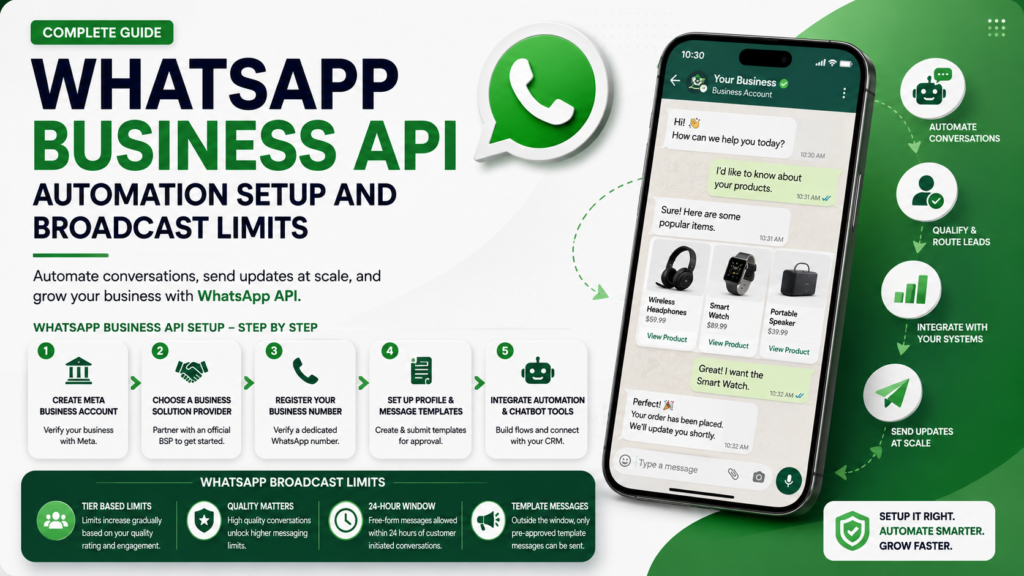
WhatsApp Business API Automation Setup and Broadcast Limits
WhatsApp Business API Automation
If your business has outgrown the regular WhatsApp Business app, juggling too many conversations manually, missing messages, or struggling to send updates to more than a handful of customers at once, you have probably already heard about the WhatsApp Business API. It is the tool that lets businesses automate conversations, integrate with their existing systems, and communicate at real scale, but setting it up correctly, and understanding the broadcast limits that come with it, trips up a lot of businesses who jump in without a clear plan.
This guide walks you through exactly how to set up the WhatsApp Business API with automation, what broadcast limits actually mean for your messaging strategy, and how to manage everything so your account stays healthy, compliant, and genuinely useful rather than becoming a source of constant frustration.
What Is the WhatsApp Business API, and Who Actually Needs It?
The WhatsApp Business API is a more advanced, developer level version of WhatsApp Business, designed for companies that need to handle higher volumes of conversations, connect WhatsApp with their customer relationship management systems, or build automated workflows that go beyond what the standard app allows.
It is not for every business. Here is a simple way to think about whether you actually need it.
Stick with the regular WhatsApp Business app if you are a small business handling a manageable number of conversations personally, and basic automated greetings or away messages cover your needs.
Move to the WhatsApp Business API if you are sending high volumes of notifications, need multiple team members or bots handling conversations simultaneously, or want to integrate WhatsApp directly with your existing software systems.
Businesses running ecommerce at scale, appointment based services with regular reminders, or customer support operations with significant message volume are the most common users of the API.
Understanding the Key Players Involved in API Setup
Before getting into the setup steps, it helps to understand who is involved in the process, since the WhatsApp Business API is not something you simply download and install like a regular app.
Meta, the company that owns and governs WhatsApp, which ultimately approves your business for API access.
A Business Solution Provider, often called a BSP, which is a Meta approved company that provides the technical infrastructure connecting your business to the WhatsApp API.
Your own development team or a hired developer, who will handle the technical integration between the API and your existing systems, such as your website, customer relationship management platform, or automation tools.
Many businesses choose to work through a Business Solution Provider rather than building a direct connection themselves, since it significantly simplifies the technical setup and often includes built in tools for automation and broadcast management.
Step by Step: Setting Up the WhatsApp Business API
1. Create a Meta Business Account
Before anything else, you need a verified Meta Business Account, since this is the foundation your WhatsApp Business API access will be built on.
Set up your Meta Business Manager account if you do not already have one.
Complete business verification, which typically involves submitting official business documents to confirm legitimacy.
Ensure your business details are accurate and consistent, since mismatched information can delay or block approval.
2. Choose a Business Solution Provider
Rather than applying directly through Meta’s more technical developer process, most businesses choose a Business Solution Provider to simplify onboarding.
Compare providers based on pricing, ease of integration, available automation features, and customer support quality.
Check whether the provider offers built in chatbot or automation tools, since this can save significant development time later.
Confirm the provider is officially Meta approved, which ensures compliance and long term account stability.
3. Register Your WhatsApp Business Phone Number
Your API setup requires a dedicated phone number that has not been previously used with the standard WhatsApp Business app in a conflicting way.
Decide whether you are migrating an existing number or registering a new one specifically for the API.
Complete the verification process, which usually involves receiving a confirmation code through call or text.
Keep in mind that once a number is fully migrated to the API, it can no longer be used with the standard WhatsApp Business app interface in the same way.
4. Set Up Your Business Profile and Message Templates
Unlike the regular app where you can send any message freely, the API requires pre approved message templates for certain types of outbound communication, particularly for messages sent outside an active customer initiated conversation window.
Submit your business profile details, including name, description, and category, for Meta’s review.
Create message templates for common scenarios like order confirmations, shipping updates, or appointment reminders.
Submit templates for approval, keeping in mind that overly promotional or vague templates are more likely to be rejected.
5. Integrate Automation and Chatbot Tools
This is where the real power of the API comes into play, allowing you to build automated workflows that handle common questions, qualify leads, or route conversations to the right team member.
Set up automated welcome messages that trigger the moment someone starts a new conversation.
Build simple decision tree style flows for frequently asked questions, such as pricing, availability, or shipping times.
Always include a clear path for customers to reach a real person, since fully automated experiences can frustrate customers with more complex needs.
6. Test Thoroughly Before Going Live
Before rolling out automation to your full customer base, testing extensively helps catch issues that could otherwise damage customer trust or violate platform policies.
Run test conversations covering a wide range of customer scenarios, not just the ideal, straightforward path.
Check that automated responses trigger correctly and that handoffs to human agents work smoothly when needed.
Confirm that message templates display properly across different devices and WhatsApp versions.
Understanding WhatsApp Broadcast Limits
Once your API setup is live, understanding broadcast limits becomes essential, since sending messages outside these limits can result in restrictions or even suspension of your account.
What Are Messaging Tiers?
WhatsApp assigns businesses to messaging tiers based on account quality and usage history, which determine how many unique customers you can message within a rolling 24 hour period.
Tier 1 typically allows messaging up to 1,000 unique customers within a 24 hour window.
Tier 2 typically allows messaging up to 10,000 unique customers within the same window.
Tier 3 typically allows messaging up to 100,000 unique customers.
Higher tiers exist for larger businesses with a strong track record of quality engagement, allowing significantly higher volume.
These numbers can shift as Meta adjusts its policies, so it is worth checking your current tier and limits directly within your Business Solution Provider dashboard rather than assuming fixed numbers indefinitely.
How Businesses Move Up Messaging Tiers
Tier upgrades are not automatic just because you want to send more messages, they are earned through consistent, quality engagement over time.
Maintain a high quality rating, which reflects how positively customers respond to your messages, including block and report rates.
Send messages that customers genuinely want, avoiding overly frequent or irrelevant promotional content.
Keep response times reasonable when customers reply, since engagement quality factors into your overall account health.
Gradually increase your sending volume rather than attempting to blast your entire contact list immediately after gaining API access.
The 24 Hour Customer Service Window
A critical concept to understand is the difference between messages sent within an active conversation versus messages sent outside of one.
If a customer has messaged you within the last 24 hours, you can respond freely with any type of message.
If more than 24 hours has passed since their last message, you can only reach out using a pre approved message template.
This window resets every time the customer sends a new message, starting a fresh 24 hour period for free form responses.
Understanding this window is essential for planning both automated responses and any follow up or re engagement messaging you want to send.
Best Practices for Managing Broadcast Limits Effectively
1. Segment Your Audience Rather Than Blasting Everyone
Sending the same broadcast message to your entire contact list regardless of relevance is one of the fastest ways to trigger blocks and reports, which directly damages your quality rating and can prevent tier upgrades.
Segment contacts based on purchase history, engagement level, or expressed interests.
Send targeted messages relevant to each specific segment rather than one generic blast to everyone.
Avoid sending broadcasts too frequently to the same audience, giving messages room to feel valuable rather than repetitive.
2. Prioritize Opt In Consent
Messaging people who never explicitly agreed to hear from your business is both a compliance risk and a fast way to accumulate blocks and reports.
Build your contact list through genuine opt ins, such as a website signup form or an explicit request during a previous conversation.
Clearly communicate what kind of messages people are signing up for, whether that is order updates, promotions, or general communication.
Make opting out simple and honor those requests immediately.
3. Monitor Your Quality Rating Closely
Meta tracks a quality rating for your WhatsApp Business account, and this rating directly influences your ability to maintain or increase your broadcast limits.
Check your quality rating regularly through your Business Solution Provider dashboard.
Address any sudden drops immediately by reviewing recent message content and audience targeting.
Pause or adjust campaigns that appear to be generating unusually high block or report rates.
4. Balance Automation With Genuine Value
Automation should make conversations faster and easier, not replace the value that made WhatsApp effective as a communication channel in the first place.
Avoid over automating to the point where customers feel stuck talking to a bot with no way to reach a real person.
Regularly review automated flows and update them based on common customer questions or points of confusion.
Use automation for efficiency at scale, while reserving personal, human touches for higher value or more complex interactions.
How to Structure Your Automation Flows for Maximum Efficiency
A well designed automation flow does more than just answer questions, it guides customers smoothly toward resolution or purchase while collecting useful information along the way. Here is how to think through building yours.
Start with a warm, clear welcome message that confirms the customer has reached the right place and briefly explains what they can do next, such as asking a question, browsing products, or requesting support.
Use quick reply buttons for the most common paths, such as sales inquiries, order status, or general support, reducing the need for customers to type out their intent from scratch.
Build branching logic based on customer responses, so someone asking about an order status gets a different flow than someone asking about a new purchase.
Insert natural checkpoints where a human can step in, particularly whenever a customer expresses frustration, asks something outside your automation’s scope, or explicitly requests to speak with a person.
Keep each automated message short and focused, since long blocks of text tend to overwhelm customers in a chat environment where quick, digestible replies feel more natural.
Regularly review conversation logs to identify where customers frequently get stuck or drop off, then refine your automation flow to address those specific gaps.
Treat your automation flow as a living system rather than a one time setup. The businesses getting the most value from WhatsApp automation are the ones revisiting and refining their flows every few weeks based on real conversation data, not the ones who set it up once and never touch it again.
Choosing Between Different Types of Business Solution Providers
Not all Business Solution Providers offer the same features, and picking the right one significantly affects how smoothly your automation and broadcast strategy will run.
All in one platforms often bundle automation builders, broadcast tools, and reporting dashboards into a single interface, which works well for businesses wanting a simpler, more guided setup without heavy technical involvement.
Developer focused providers offer more raw flexibility and deeper customization but typically require a developer to build and maintain your automation logic, better suited for businesses with specific, complex workflow needs.
Industry specific providers sometimes offer pre built templates and flows tailored to particular business types, such as ecommerce, real estate, or healthcare, which can significantly speed up your initial setup.
When comparing providers, it helps to request a demo or trial period if available, and to specifically ask about their broadcast limit management tools, since some platforms offer built in audience segmentation and quality monitoring that make managing tiers considerably easier than tracking everything manually.
Common Mistakes When Setting Up WhatsApp Business API Automation
Skipping proper testing before launch, leading to broken automated flows that frustrate customers right from their first interaction.
Sending broadcast messages without proper segmentation, resulting in high block and report rates that damage your quality rating.
Ignoring the 24 hour messaging window, attempting to send free form messages outside of it and having them rejected or restricted.
Over relying on automation without a human fallback, leaving customers with complex issues stuck in a frustrating loop.
Choosing a Business Solution Provider based on price alone, without properly evaluating their automation tools, support quality, or reliability.
Trying to scale broadcast volume too quickly, before earning the trust and quality history needed to move up messaging tiers safely.
Frequently Asked Questions
1. Is the WhatsApp Business API free to use?
The API itself involves costs, typically including fees from your chosen Business Solution Provider along with Meta’s own conversation based pricing, which varies based on message type and region. It is not free the way the standard WhatsApp Business app is.
2. How long does WhatsApp Business API approval typically take?
Approval time varies, but it generally ranges from a few days to a couple of weeks, depending on your Business Solution Provider, the completeness of your business verification, and Meta’s current review volume.
3. Can I still reply to customers if I hit my broadcast limit?
Yes, broadcast limits apply specifically to outbound messages sent to unique customers you have not been actively conversing with. Replying to customers who message you directly is generally not restricted by these broadcast tier limits.
4. What happens if my quality rating drops significantly?
A dropping quality rating can lead to reduced messaging limits or, in serious cases, restrictions on your ability to send messages at all. Addressing the root cause quickly, usually related to message relevance or frequency, is the best way to recover.
5. Do I need coding knowledge to set up WhatsApp Business API automation?
Not necessarily. Many Business Solution Providers offer no code or low code automation builders, making it possible to set up chatbots and workflows without deep technical expertise, though more complex integrations may still benefit from developer support.
6. Can small businesses benefit from the WhatsApp Business API, or is it only for large companies?
While it is most commonly associated with larger businesses handling high message volume, small businesses experiencing rapid growth or needing deeper automation and integration can also benefit, as long as the added cost and complexity make sense for their specific needs.
Final Thoughts
Setting up the WhatsApp Business API with automation opens up genuinely powerful capabilities for businesses ready to scale their conversational commerce and customer communication efforts. The key to doing it successfully lies in respecting the platform’s structure, understanding your messaging tiers, honoring the 24 hour conversation window, and building automation that genuinely helps customers rather than frustrating them. Businesses that approach this thoughtfully, prioritizing quality engagement over aggressive broadcast volume, are the ones who build sustainable, high performing WhatsApp channels rather than accounts that hit limits, restrictions, or damaged reputations early on.