
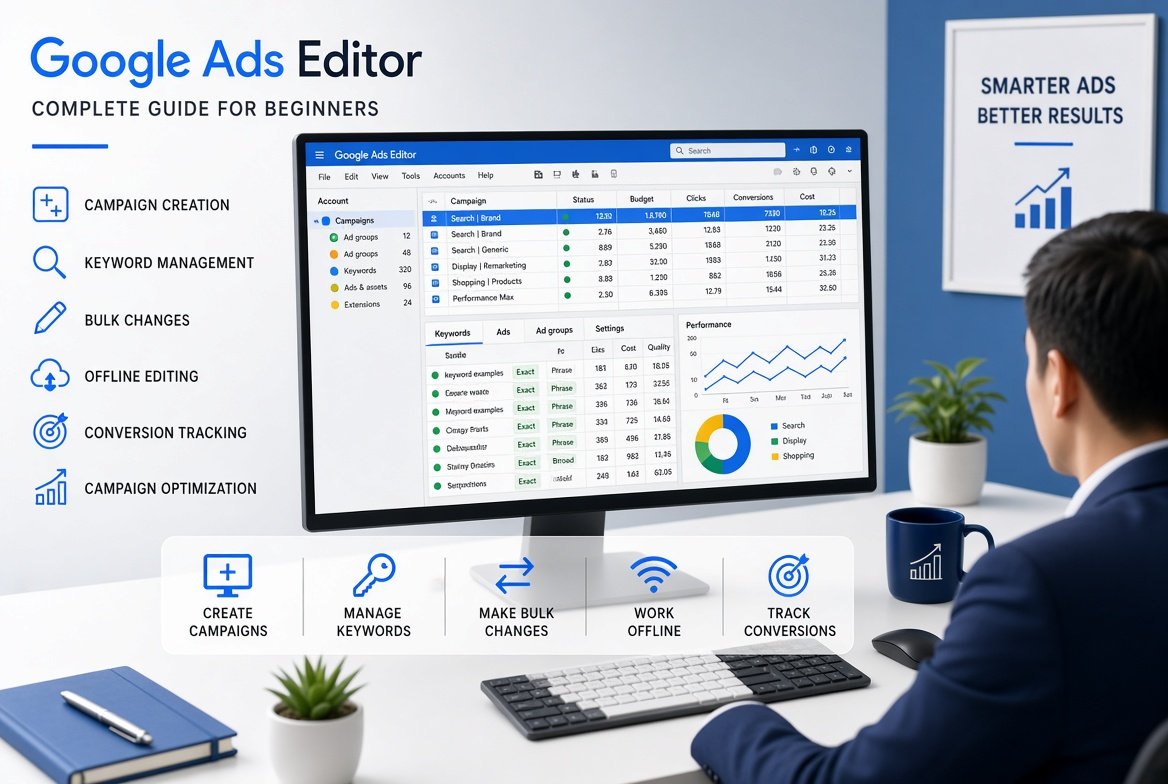
Google Ads Editor is a free application from Google that allows advertisers to create, edit, organize, and manage Google Ads campaigns more efficiently. Instead of making every change individually inside the Google Ads online interface, advertisers can use Google Ads Editor to make bulk changes, manage large accounts, work offline, and review campaign updates before posting them.
For beginners, the platform can look complicated at first. However, once the basic workflow is understood, it becomes a practical tool for managing campaigns, keywords, advertisements, targeting settings, budgets, and other account elements.
This guide explains what Google Ads Editor is, how it works, how to use it, and which features can help you manage Google Ads campaigns more efficiently.
Google Ads Editor is a desktop application designed to help advertisers manage Google Ads accounts.
The application allows users to download campaign information from their Google Ads accounts and make changes directly from their computers. After reviewing those changes, users can post them back to their Google Ads accounts.
This approach is especially useful when an account contains many campaigns, ad groups, keywords, advertisements, or targeting settings.
For example, imagine that an advertiser needs to update the final URL across 100 advertisements. Changing every advertisement individually through the online interface could take considerable time.
With Google Ads Editor, the same type of change can often be handled in bulk.
As a result, the tool can save time and reduce repetitive manual work.
Google Ads Editor is particularly useful for advertisers who manage multiple campaigns or large advertising accounts.
The platform provides several advantages, including:
Moreover, advertisers can review changes before they are uploaded to the live account.
That extra review step can be valuable because PPC mistakes can become expensive when campaigns have active budgets.
Businesses looking for broader PPC support can also explore Google Ads services to understand how professional campaign management works.
Google Ads Editor does not replace the Google Ads online platform.
Instead, the two tools can work together.
The Google Ads online interface is useful for monitoring live performance, reviewing reports, checking recommendations, managing certain settings, and accessing features that require an internet connection.
Google Ads Editor, meanwhile, is designed primarily for efficient campaign management and bulk changes.
A simple way to understand the difference is:
| Google Ads Online | Google Ads Editor |
|---|---|
| Browser based | Desktop application |
| Live account management | Download and edit campaigns |
| Useful for reporting | Useful for bulk changes |
| Requires internet connection | Many editing tasks can be performed offline |
| Individual and account level changes | Large scale campaign editing |
| Real time performance monitoring | Campaign creation and editing |
Therefore, experienced PPC professionals often use both tools rather than treating them as alternatives.
The basic workflow is straightforward.
First, install Google Ads Editor on your computer.
Next, sign in and download the Google Ads account you want to manage.
After that, campaign information becomes available inside the application.
You can then create new campaigns or modify existing ones.
Once the changes are ready, review them carefully.
Finally, post the approved changes to the Google Ads account.
The general workflow is:
Download
↓
Edit
↓
Review
↓
Validate
↓
Post
This workflow gives advertisers greater control over large scale campaign updates.
Google Ads Editor is available as a desktop application for advertisers who want to manage Google Ads accounts more efficiently.
Before downloading the application, make sure your computer meets the current operating requirements and that you are using the official Google Ads Editor source.
Once installed, you can sign in with the Google account that has access to the relevant Google Ads accounts.
After signing in, the next step is downloading the account data you need to manage.
For beginners, it is a good idea to start with one account rather than downloading several large accounts immediately.
That approach makes the interface easier to understand and reduces the possibility of editing the wrong account.
Learning how to use Google Ads Editor becomes much easier when you understand its main workflow.
Begin by installing the application on your computer.
After installation, open the program and sign in using the appropriate Google account.
Once you are signed in, select the Google Ads account you want to work with.
If you manage multiple accounts, check the account name and identification details carefully.
This simple step can prevent major mistakes.
Download the campaigns you want to manage.
You can generally choose which campaigns and account elements you need rather than downloading everything unnecessarily.
Before making changes, review the existing campaign structure.
Look at:
This review gives you a clearer understanding of the account.
You can now edit campaign elements in bulk.
For example, you could update multiple keywords, advertisements, URLs, bids, or campaign settings.
Google Ads Editor provides tools for identifying problems before changes are posted.
Therefore, always review warnings and errors before publishing.
Once everything has been reviewed, post the changes to the Google Ads account.
Afterward, check the online account to make sure the updates have been applied correctly.
The Google Ads Editor interface is organized around account and campaign elements.
Although the exact interface may change as Google updates the software, the basic structure revolves around navigating campaigns and selecting specific items to edit.
Common areas include:
The main workspace allows you to select an item and edit its available settings.
For beginners, spending some time exploring each section before making changes is recommended.
One of the biggest reasons advertisers use Google Ads Editor is bulk editing.
Instead of updating hundreds of items individually, you can select multiple items and make changes at the same time.
For example, suppose a business has 20 campaigns targeting different cities.
The advertiser may need to update a tracking parameter across multiple advertisements.
Doing this manually could take a significant amount of time.
Google Ads Editor can make this type of repetitive task much faster.
Bulk editing can be useful for:
Consequently, Google Ads Editor can be particularly valuable for agencies and PPC professionals managing multiple accounts.
Campaign management is one of the platform’s most useful functions.
Advertisers can create and organize campaigns while maintaining a clear account structure.
For example, an ecommerce business might create separate campaigns for:
Keeping campaigns organized makes performance analysis easier.
Furthermore, a clear structure can help advertisers manage budgets and targeting more effectively.
Businesses can also use Google Search advertising when their strategy focuses on users actively searching for relevant products or services.
Google Ads Editor can help advertisers build campaign structures before publishing them.
A typical campaign creation process involves:
The ability to prepare multiple campaign elements before publishing is particularly useful for large launches.
For example, an agency launching campaigns for a business in ten locations can prepare similar campaign structures and then customize each location.
Keywords are a central part of search advertising.
Google Ads Editor makes it easier to add, edit, organize, and remove keywords across campaigns.
You can work with:
However, keyword volume should not be confused with keyword quality.
Adding thousands of keywords does not automatically produce better results.
Instead, keywords should be selected according to search intent, relevance, competition, and business value.
Businesses can strengthen this process with professional keyword research services.
Negative keywords help prevent advertisements from appearing for searches that are not relevant to your business.
For example, suppose a company sells premium software and does not offer a free version.
Searches containing terms such as “free software” may not be valuable for that business.
Adding suitable negative keywords can reduce irrelevant clicks.
Google Ads Editor can make this process faster because negative keywords can be added or modified in bulk.
Nevertheless, negative keyword decisions should be based on actual search data and business goals.
Advertisement copy plays an important role in attracting relevant users.
Google Ads Editor allows advertisers to manage advertisements more efficiently, particularly when similar advertisements are needed across multiple campaigns or ad groups.
Strong ad copy should communicate:
For example, an advertisement for a local plumbing company could focus on emergency availability, local service areas, fast response, or transparent pricing.
Meanwhile, an ecommerce advertisement might focus on product benefits, offers, delivery, or product categories.
Testing different messages can help identify what resonates with the target audience.
Landing page URLs often need to be updated during website migrations, campaign restructuring, or tracking changes.
Google Ads Editor can make these updates easier when multiple advertisements need new URLs.
However, URL changes should always be checked carefully.
A single incorrect URL can send paid traffic to the wrong page.
Therefore, advertisers should test important URLs before posting large changes.
Businesses that need dedicated landing pages can also explore landing page development to improve the connection between advertisements and conversion pages.
Another useful feature is the ability to work on campaign changes without continuously editing the live account through a browser.
This can be useful for agencies and PPC professionals who need to prepare large campaign updates.
For example, an advertiser could download an account, work on campaign changes while offline, and then connect to the internet later to post the completed updates.
That flexibility can be helpful when preparing campaigns during travel, working with large accounts, or planning changes in advance.
Nevertheless, campaign data should be downloaded regularly so that the offline version remains aligned with the live account.
Creating many similar campaigns manually can take a significant amount of time.
Google Ads Editor can simplify this process by allowing advertisers to duplicate campaign structures and then customize the relevant elements.
Imagine a business serving ten different cities.
Instead of building every campaign from the beginning, the advertiser could create a strong structure and then duplicate it.
Afterward, each campaign can be customized with the appropriate:
This approach can save time while maintaining consistency.
However, copied campaigns should never be published without careful review.
Duplicate content, incorrect locations, and wrong landing pages can create unnecessary problems.
Google Ads Editor can work with structured campaign data, making it easier to manage large amounts of information.
Import and export functionality can be particularly useful when an advertiser needs to prepare changes outside the standard editing workflow.
For example, campaign information can be reviewed in spreadsheet form before being brought into the editor.
This can help agencies manage large campaign builds more efficiently.
However, advertisers should always verify formatting and field requirements before importing large amounts of data.
Google Ads Editor becomes even more valuable when it is part of a broader PPC management process.
A strong campaign management system should include:
Google Ads Editor mainly helps with the management and implementation side.
Performance decisions still require analysis of actual campaign data.
Therefore, the tool should be considered part of a PPC workflow rather than the entire strategy.
Businesses can also explore PPC advertising strategy for a broader understanding of campaign planning.
Digital marketing agencies often manage several Google Ads accounts at the same time.
For such teams, efficiency becomes extremely important.
An agency may need to:
Completing these tasks manually through the online interface can become repetitive.
Google Ads Editor provides a more efficient workflow for large scale changes.
Furthermore, agencies can prepare campaign updates in advance and review them internally before publishing.
Small businesses may not need Google Ads Editor immediately.
If an account contains only a few campaigns and a small number of keywords, the online Google Ads interface may be sufficient.
However, the tool becomes more useful as the account grows.
For example, a business expanding from one location to ten locations may suddenly need to manage many additional campaigns and advertisements.
At that stage, bulk editing can save considerable time.
Small businesses can also combine PPC with SEO for small business to build both paid and organic search visibility.
Local businesses can use Google Ads Editor to manage campaigns across multiple service areas.
For example, a home service company may target several cities.
Each location may require slightly different:
Managing those changes individually can become time consuming.
Google Ads Editor can make large scale local campaign updates easier.
However, location targeting should always reflect the actual areas a business serves.
Advertising outside the service area can waste budget and reduce lead quality.
For broader local visibility, businesses can also invest in local SEO services.
Ecommerce advertisers can use Google Ads Editor as part of their wider campaign management process.
Google Shopping campaigns require careful organization because product groups, targeting, budgets, and performance need regular attention.
A structured campaign setup makes it easier to identify which product categories are generating sales.
For ecommerce businesses, Google Shopping Ads can support product focused advertising.
Moreover, Shopping campaigns can be combined with search campaigns when the business wants to reach customers through multiple paid search formats.
Display advertising serves a different purpose from search advertising.
While search campaigns often target active search demand, display campaigns can help businesses build awareness and reconnect with previous visitors.
Google Ads Editor can assist with managing larger campaign structures and making changes across multiple campaign elements.
Businesses interested in visual advertising can explore Google Display advertising as part of a broader PPC strategy.
Although Google Ads Editor can make PPC management faster, mistakes are still possible.
When managing multiple accounts, always verify the account before making changes.
Bulk changes can affect hundreds of items.
Therefore, always review changes before posting.
Duplicating a campaign can save time, but copied settings may not be appropriate for the new campaign.
Warnings and errors should be investigated before publishing.
If your downloaded account information is outdated, you may make changes based on incorrect information.
Large changes can make performance analysis difficult.
When possible, maintain a clear testing process so that results can be attributed to specific changes.
Campaign settings may look perfect while the destination pages contain problems.
Always check important URLs before publishing.
Following a consistent process can make the tool much easier to use.
Use clear campaign and ad group names.
A logical naming system helps teams understand the account quickly.
Before making major changes, download the latest account information.
Filters can help you find specific campaigns, advertisements, keywords, or other account elements quickly.
Instead of making random changes throughout the account, group similar tasks together.
Always check the changes before sending them to the live account.
Exporting campaign data before major changes can provide an additional reference point.
Make sure landing pages work correctly before sending paid traffic to them.
Posting a campaign change is not the end of the process.
Afterward, monitor performance to determine whether the change produced the expected outcome.
PPC professionals often manage large amounts of information.
Therefore, learning the application’s navigation, filters, selection tools, and editing workflow can significantly improve productivity.
Instead of opening each campaign separately, look for opportunities to select multiple items and perform the same operation simultaneously.
For example, if several advertisements need the same tracking update, bulk editing can reduce repetitive work.
Similarly, campaign structures can be copied when multiple campaigns require the same basic framework.
The key is to use automation and bulk operations carefully while maintaining quality control.
Google Ads Editor helps manage campaigns, but conversion tracking remains essential for understanding campaign performance.
Without accurate tracking, an advertiser may see:
However, those numbers do not tell you whether the campaign generated valuable customers.
Important conversion actions may include:
Consequently, campaign management should always be connected to conversion measurement.
Optimization means improving campaigns based on actual performance data.
An advertiser may discover that:
Those insights can then guide campaign changes.
Google Ads Editor can help implement those changes quickly.
For example, once poor performing keywords have been identified, they can be paused or removed in bulk.
Similarly, successful campaign structures can be duplicated and adapted for new locations.
Advertisers can also review Google Ads techniques for additional optimization ideas.
Many PPC professionals use spreadsheets to plan campaigns.
Spreadsheets can be useful for keyword research, campaign planning, advertisement writing, and data organization.
However, Google Ads Editor provides a direct campaign management environment.
A spreadsheet may contain planned keywords, while Google Ads Editor can be used to implement those changes in the account.
Therefore, the two tools can complement each other.
A common workflow could be:
Research
↓
Plan in spreadsheet
↓
Build in Google Ads Editor
↓
Review
↓
Post
↓
Monitor performance
This process can be particularly useful for large campaign builds.
Yes. Google Ads Editor can be useful for beginners, although the interface may initially feel unfamiliar.
A new advertiser should avoid starting with a large account.
Instead, begin by learning how to:
Once these fundamentals are comfortable, move on to bulk campaign creation and more advanced workflows.
The most important lesson is to understand what a change does before applying it to a live campaign.
Here is a practical workflow for someone learning the platform for the first time.
Download one campaign rather than an entire large account.
Understand how campaigns, ad groups, keywords, advertisements, and landing pages are connected.
For example, update one advertisement or add a few negative keywords.
Check whether Google Ads Editor identifies any problems.
Send the approved change to the Google Ads account.
Confirm that the update appears correctly.
Gradually increase the size and complexity of your changes.
This method reduces risk while helping beginners understand how the application works.
Before posting major changes, use this checklist:
This simple process can prevent many avoidable PPC mistakes.
Google Ads Editor is used to create, edit, organize, and manage Google Ads campaigns. It is especially useful for bulk changes and large account management.
Yes. Google Ads Editor is provided by Google at no additional software cost.
Many campaign editing tasks can be completed while working offline after account data has been downloaded. An internet connection is required when you need to download current account information or post changes to the live account.
Neither tool completely replaces the other. Google Ads Editor is particularly useful for bulk campaign management, while the online Google Ads platform is useful for live account management, monitoring, reporting, and other account functions.
Yes. It is designed to help advertisers manage Google Ads accounts more efficiently, which can be particularly useful for agencies and professionals managing multiple clients.
Yes. Google Ads Editor can be used to create campaign structures and prepare campaign changes before posting them to the live account.
Yes. Advertisers can add, remove, organize, and modify keywords using the application.
Yes. Advertisement information can be managed and updated, which is particularly useful when making changes across multiple campaigns or ad groups.
Yes. Negative keywords can be added and managed through the editor, helping advertisers reduce irrelevant search traffic.
Yes. Bulk editing and campaign management features make it particularly useful for large accounts containing many campaigns, keywords, advertisements, and other elements.
Beginners can use Google Ads Editor, but they should first understand the basic Google Ads structure. Starting with a small campaign is a safer way to learn.
Google Ads Editor is a practical tool for advertisers who want to manage campaigns faster and more efficiently. Its strongest advantage is the ability to make and review large numbers of changes without manually editing every item through the browser.
For beginners, the best approach is to learn the basic workflow first. Download the account, understand the campaign structure, make small changes, review potential errors, and then post approved updates.
As your campaigns become larger, bulk editing, campaign duplication, filters, and offline management can save substantial time.
However, the tool itself does not create a successful PPC strategy. Strong results still depend on relevant keywords, effective advertisements, accurate conversion tracking, suitable landing pages, proper targeting, and continuous optimization.
When these elements work together, Google Ads Editor becomes a valuable part of a professional campaign management process.
Businesses that want to combine paid advertising with organic search can also explore search engine optimization services and develop a broader search marketing strategy.
Get Free Strategy Session or Request Proposal.